
Key Steps
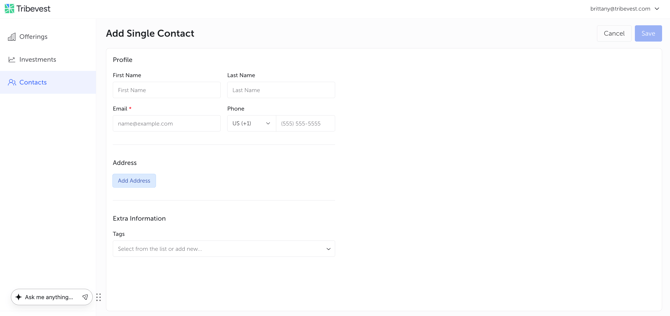
Step 1: Adding a Single Contact 0:00
-
Access the contact list in the system.
-
Click on the option to add a single contact.
-
Fill in the required fields, ensuring to include an email address.
-
Optionally, add tags to categorize the contact.
Step 2: Adding Multiple Contacts via CSV 0:27
-
Download the CSV template provided by the system.
-
Fill in the contact information in the CSV template.
-
Upload the completed CSV back into the system.
-
Choose to skip duplicates or overwrite them as necessary.
-
Review the preview and confirm the import.
Step 3: Inviting Investors 1:13
-
Navigate to the offerings section and select the relevant offering (e.g., Copperwood Townhomes).
-
Use the pre-populated email template to invite investors.
-
Select the contacts (e.g., Cam and Brandon) to whom you want to send the invitation.
Step 4: Configuring Email Settings 1:41
-
Enter your email address in the sender email section to ensure replies go to you.
-
Set the 'reply to' address to your email if you want responses directed to you.
Step 5: Previewing the Invitation 1:58
-
Send yourself a preview of the email to check the content.
-
Ensure that the email includes all necessary details such as the offering title and investment highlights.
Step 6: Sending the Invitation 2:38
-
Once satisfied with the preview, send the invitation to the selected contacts.
-
Check the invitations tab to confirm the status of the sent invitations.
Step 7: Tracking Responses 3:03
-
Monitor the invitations tab for updates on whether the recipients have opened or clicked on the invitation.
-
If needed, resend the invitation to those who have not responded.
Step 8: Managing Investor Commitments 3:10
-
If recipients make a soft commitment, they will be moved to the Investors tab for further action.
Cautionary Notes
-
Ensure that all email addresses are correctly entered to avoid sending invitations to the wrong contacts.
-
Double-check the CSV file for formatting errors before uploading to prevent import issues.
Tips for Efficiency
-
Use tags to categorize contacts for easier management and retrieval.
-
Regularly update the contact list to keep it current and relevant.
-
Utilize the preview feature to minimize errors before sending out invitations.